Add Sources
Build a notebook from supported documents, websites, videos, audio, images, pasted text, books, spreadsheets, and presentations.
Learn how to turn your own sources into cited answers, summaries, Audio Overviews, Video Overviews, Mind Maps, reports, notes, flashcards, quizzes, slide decks, and organized research projects.
NotebookLM is a Google AI research and learning tool that helps users understand, organize, question, and transform a selected collection of sources.
A notebook is a focused workspace for one project. You add the documents, websites, recordings, videos, notes, images, or other supported sources that matter to the subject.
NotebookLM can then answer questions using those selected sources, provide inline citations, identify themes, compare ideas, create study materials, generate audio and video summaries, and transform the information into several useful formats.
Unlike a general chatbot that may answer from broad model knowledge or the open web, NotebookLM is designed to keep its notebook chat grounded in the sources associated with that notebook.
Available features can vary by account, plan, age, device, country, language, and current product version.
Build a notebook from supported documents, websites, videos, audio, images, pasted text, books, spreadsheets, and presentations.
Ask questions about the selected material and receive answers grounded in the notebook’s active sources.
Follow inline citations back to quoted passages, images, or locations in the original source.
Transform sources into an AI-generated spoken overview that explains and discusses the material.
Turn complex notebook material into an AI-generated visual presentation with narration and supporting visuals.
Visualize major topics and related ideas through a branching map generated from notebook sources.
Transform sources into briefings, study guides, summaries, learning guides, timelines, or customized reports.
Build interactive flashcards from the source material to reinforce terms, facts, ideas, and relationships.
Create customizable quizzes that help learners test comprehension and identify gaps in understanding.
Transform selected sources into a presentation that can be reviewed, presented, or shared as a PDF.
Write original notes, save useful chat responses, and convert selected notes into new notebook sources.
Share supported notebooks and selected outputs with viewers or collaborators when sharing is available.
A focused notebook with well-chosen sources usually produces more useful results than a collection of unrelated material.
Define a book, course, research question, meeting, subject, or learning goal.
Upload or link the documents, pages, recordings, videos, and notes that matter.
Examine generated summaries, topics, suggested questions, and source descriptions.
Request comparisons, explanations, timelines, evidence, gaps, and cited answers.
Generate study guides, audio, video, quizzes, maps, notes, reports, or slides.
A notebook works best when its sources support one clear project, subject, decision, or learning goal.
A notebook about one book might include the manuscript, research notes, interview transcripts, source articles, character files, and marketing information.
A notebook about a course might include lesson plans, readings, lecture notes, worksheets, transcripts, assignments, and reference documents.
Supported formats and limits may change, and some source types may be more restricted in the mobile application.
Add supported PDF, Word, text, Markdown, ePub, CSV, PowerPoint, and other document formats.
Add supported Google Docs, Google Slides, and Google Sheets from an authorized Google account.
Add supported web pages by URL or use available source-discovery tools to locate new material.
Add public YouTube URLs so NotebookLM can work with supported transcript information from the video.
Add supported audio recordings such as lectures, interviews, meetings, podcasts, and spoken notes.
Add supported images or paste text directly when the information does not already exist in another source file.
Choose which notebook sources should be active for the question.
State a focused question, comparison, task, or learning goal.
Read the response and identify the claims most important to your project.
Open inline citations and examine the quoted source material in context.
Ask follow-up questions, request clarification, and identify missing evidence.
Save useful responses to notes or transform the findings into another output.
The Studio area can turn the same source collection into several learning, research, presentation, and communication formats.
Create an AI-generated spoken discussion or supported audio format that summarizes and connects information from selected sources.
Create a narrated visual overview designed to make complex notebook material easier to understand.
Display major topics and relationships as a branching visual map that supports exploration and understanding.
Create interactive review cards from the sources and customize the focus or difficulty when supported.
Test understanding through source-based questions and use the results to identify subjects requiring further study.
Convert source material into an organized presentation that can be reviewed, presented, or shared in a supported format.
Generate briefings, study guides, learning guides, timelines, summaries, or customized reports based on notebook sources.
Turn key source insights into a visual information format when infographic generation is available.
Add your own thoughts, preserve useful answers, organize findings, and convert selected notes into sources.
NotebookLM can support learning when students actively question, test, explain, and apply the material instead of only consuming generated summaries.
Add lecture notes, readings, presentations, transcripts, assignments, and teacher-approved references.
Ask for source-based explanations, comparisons, examples, definitions, and connections between concepts.
Use flashcards and quizzes to recall information instead of repeatedly rereading summaries.
Request questions that expose gaps, misunderstandings, missing evidence, and topics requiring additional study.
Move between text, audio, video, maps, slides, quizzes, and notes to reinforce understanding.
Check citations, follow school rules, use your own reasoning, and confirm all quotations and claims.
Authors can use NotebookLM to organize research, question source material, compare documents, find supporting evidence, and create resources connected to a book.
Add the manuscript, source documents, interviews, timelines, notes, studies, and supporting web pages for one book.
Add lessons, readings, lecture transcripts, slides, worksheets, assignments, and approved study resources.
Add reports, meeting notes, procedures, customer research, product documents, policies, and strategic plans.
Add primary documents, books, articles, maps, interviews, timelines, photographs, and competing interpretations.
Add agendas, previous minutes, background documents, proposals, reports, and questions requiring decisions.
Add trusted books, articles, videos, notes, transcripts, and practice material related to one subject.
NotebookLM can accurately summarize a source that is itself outdated, biased, incomplete, or incorrect.
The system may misunderstand technical wording, images, tables, context, tone, or relationships between documents.
Understand AI hallucinationsA cited passage may be real but still require surrounding text, later revisions, or outside information.
Learn how to verify informationEach notebook is a separate source collection and may not automatically use information stored in another notebook.
Uploaded files, generated outputs, sharing settings, Gemini connections, and collaborator access require careful review.
Explore AI and privacyUsers remain responsible for source selection, permissions, citations, conclusions, sharing, publication, and final decisions.
A notebook containing unrelated sources can make questions less focused and connections less useful.
Source grounding cannot correct misinformation that already exists in the supplied material.
Summaries can omit exceptions, qualifications, methods, disagreements, or important supporting details.
The strongest advantage of NotebookLM is weakened when users never inspect the cited source passages.
Listening to an overview is useful, but lasting learning also requires recall, practice, explanation, and application.
Users should check permissions and privacy rules before adding or sharing confidential, licensed, or personal material.
NotebookLM can serve as the source-grounded knowledge layer of a larger research, education, publishing, or business workflow.
Perplexity or another search tool may help locate current sources. NotebookLM can organize and question the selected material. ChatGPT, Claude, Gemini, or another assistant may help develop plans, writing, code, images, or files. Replit can help turn ideas into working applications.
The human creator remains responsible for choosing trustworthy sources, checking citations, directing the workflow, protecting private information, and approving the final result.
NotebookLM changes frequently. Use Google’s official pages for current source types, account limits, supported languages, Studio features, mobile availability, privacy rules, plans, and sharing controls.
NotebookLM offers standard access through eligible Google accounts. Higher limits and additional features may be available through Google AI plans, qualifying Workspace or Education plans, and Google Cloud offerings.
Current limits and plan names should be confirmed through Google’s official NotebookLM pages.
NotebookLM is built around a selected collection of sources. Its notebook chat is designed to answer from those sources and show inline citations.
General-purpose assistants may be better suited to open-ended writing, broad web research, coding, image generation, or tasks not tied to a defined source library.
Supported sources may include PDFs, websites, public YouTube videos, audio files, pasted text, Google Docs, Slides, Sheets, Word files, PowerPoint files, CSV files, Markdown, text files, ePub books, images, and other supported formats.
File types and limits may differ between the browser and mobile application.
NotebookLM may provide tools for finding or discovering potential sources, and users can add supported websites to a notebook.
The notebook chat is designed to answer from the active sources selected within that notebook rather than freely drawing from the entire web.
Citations provide a direct path to the supporting source passage, which makes answers easier to inspect.
Users should still check the source context, verify the interpretation, and determine whether the underlying source is accurate and current.
Audio Overviews transform selected notebook sources into an AI-generated spoken presentation or discussion designed to explain and summarize the material.
Available formats, languages, customization, interaction, downloads, and daily limits may vary.
Video Overviews transform source material into a narrated visual presentation intended to make complex information easier to understand.
Mobile support, length, formats, customization, and availability may vary.
Yes. NotebookLM can generate interactive flashcards and quizzes from notebook sources.
Users may be able to select a difficulty level and provide instructions about the audience, style, focus, or subject.
NotebookLM can generate supported slide decks from notebook sources. The presentation may be reviewed within NotebookLM and shared in a supported format such as PDF.
Users should check all text, images, citations, layout, and claims before presenting or publishing the deck.
Individual notebooks are generally separate source collections. NotebookLM may not automatically access information stored in another notebook while answering a question.
Add the required sources to the current notebook when information from several projects needs to be considered together.
Yes. NotebookLM may misunderstand a source, omit context, connect ideas incorrectly, or create an inaccurate summary even when the cited passage is genuine.
Important conclusions should be checked against the full source and, when appropriate, additional authoritative material.
Google states that files, outputs, and chat history in NotebookLM are not used directly to train its foundational AI models unless an individual user chooses to provide feedback.
Different terms and protections may apply to personal, work, school, Workspace, Gemini-connected, or Cloud accounts. Review the current official privacy notice for the account being used.
Do not upload confidential, private, medical, legal, financial, employment, customer, student, account, licensed, or identifying material unless you understand the applicable privacy protections, account type, retention rules, sharing settings, organizational policies, and permissions.
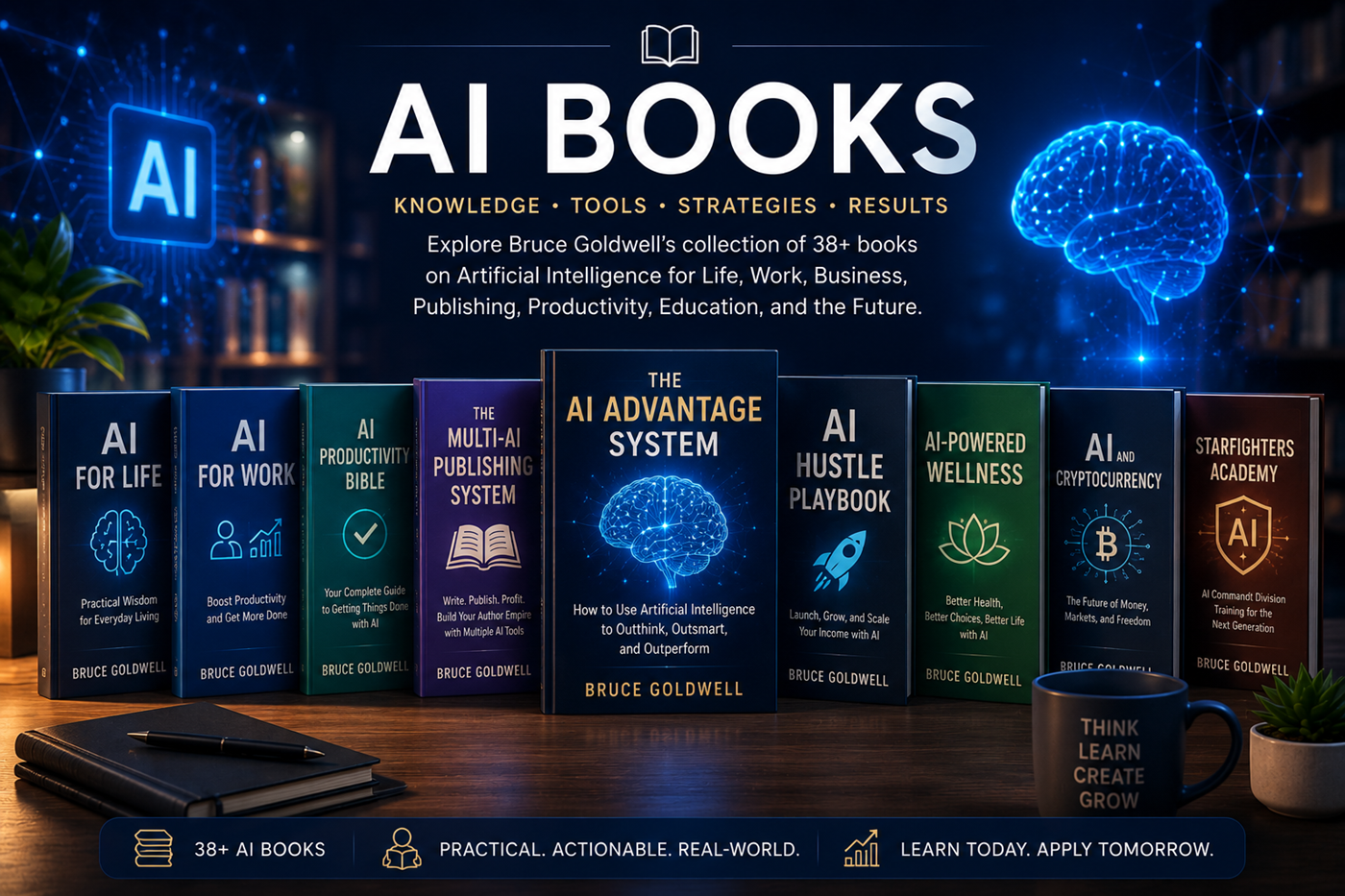
Bruce Goldwell’s AI-related books explore prompts, research, productivity, publishing, business, education, applications, automation, creative systems, and future technology.
The books connect practical AI research and learning tools to larger systems for authors, entrepreneurs, creators, students, professionals, and lifelong learners.
Learn how Replit Agent and Replit’s AI development tools can help turn ideas into websites, applications, databases, automations, and deployed software.